I recently needed to get into an SQL database, which only had the SA account as a 'sysadmin'. The unfortunate thing was the client didn't have the SA password documented anywhere. So we needed to reset that password somehow, or risk having to completely reinstall SQL!
Luckily, there's a relatively easy way to be able to get into a locked out SQL database, by resetting the SA password. The only caveat, is that you are a local administrator of the SQL server itself. Most of the time it's going to be on the domain, so as long as you have a Domain Admin account, you're going to be able to get in rather easily.
Fisrtly, you will need to download PsExec. It's from the Microsoft website. Extract the contents to your desktop of the server or somewhere you can easily access the .exes within it.
Through CMD, navigate to the location of the EXEs.
psexec -s -i "C:\Program Files (x86)\Microsoft SQL Server\110\Tools\Binn\ManagementStudio\ssms.exe"
This will fire up SQL Management Studio, running as the system account. Once you've done that, go into the security section of SQL and reset the password for the SA account!
It's that simple! Shouldn't take you more than 5 minutes to get in and reset the password, provided you come across this blog ;-)
Showing posts with label Server 2008R2. Show all posts
Showing posts with label Server 2008R2. Show all posts
16 August 2018

30 June 2018
DCPromo fails with: "The directory service is missing mandatory configuration information, and is unable to determine the ownership of floating single-master operation roles"
I was recently decommissioning an old DC as part of an infrastructure upgrade project for a client of ours. When attempting the DCPROMO process to remove the old DC, I encountered the following error:

This is very easy to resolve, however it usually is a result of an old DC that's no longer in the network that's not been decommissioned properly.
There are two types of error messages that look almost the same, however they will both hold you up when trying to decommission the server:
- ForestDnsZones
- DomainDnsZones
The same process can be followed to resolve each of these messages, and I would suggest that if you encounter the error above, then you sort these both out.
To investigate the issue, you can run the following command, which will tell you the dSMORoleOwner:
dsquery * CN=Infrastructure,DC=ForestDnsZones,DC=domain,DC=local -attr fSMORoleOwner
I received the following results, which shows the orphaned object. You can see this by the "0ADEL:XXXXX" part in the return query.

In order to resolve this, you need to set the new server as the role owner. This can be done in ADSI Edit.
Open up ADSI Edit and navigate to the following path:
CN=Infrastructure,DC=ForestDnsZones,DC=domain,DC=com
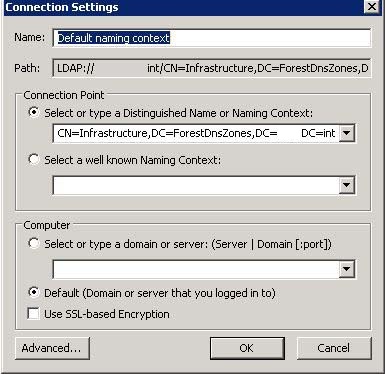
Right-click > Properties on 'infrastructure', and under Attribute Editor, search for fSMORoleOwner.
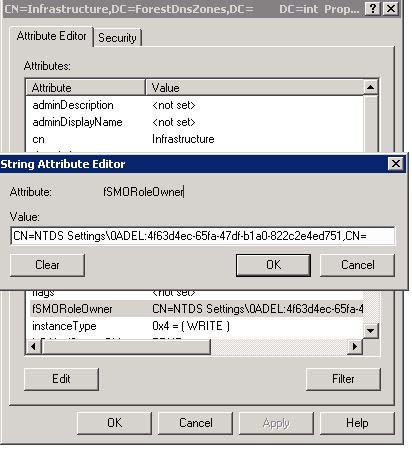
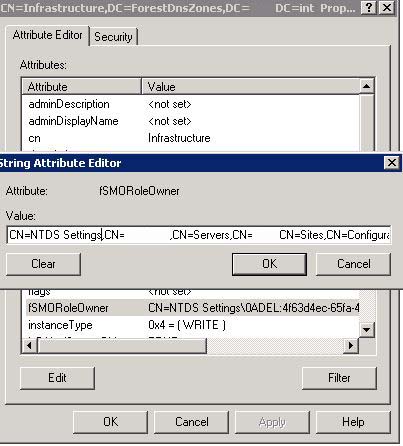
Now replace this with the location of your PDC which should have all the FSMO roles assigned to it:
CN=NTDS
Settings,CN=ServerName,CN=Servers,CN=Perth,CN=Sites,CN=Configuration,DC=Domain,DC=com
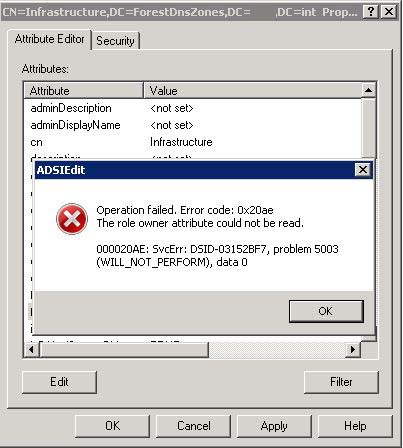
That's it! You're done. If you do notice you get the following error, it will be because you're probably making this change on the troublesome DC. Make sure you do this on one of the other working DCs and you will avoid any errors.
01 November 2017
Windows Update Error: 80243004
Recently I was running Windows Update on a client's server, and I encountered the following error message:
 Luckily this is a nice and easy fix.
1. Right-click task-bar and click on Properties

2. Click Customize

3. Tick Always show all icons and notifications on the taskbar
 Once you've done that, simply click Try Again and it should work for you now.
1. Right-click task-bar and click on Properties
28 December 2016
Directory service is missing mandatory configuration information | Server 2008R2
I was recently demoting a Domain Controller as I had upgraded to Server 2016, when I came across the following error message:
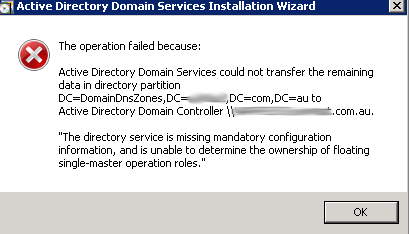
What this means is that the fSMORoleOwner is most likely pointing to the server that you're trying to decommission, and of course you can't do this. So what needs to be done is to update this to point to another DC that's active.
First, to confirm this, you will need to go into ADSI Edit. Connect to the following:


What this means is that the fSMORoleOwner is most likely pointing to the server that you're trying to decommission, and of course you can't do this. So what needs to be done is to update this to point to another DC that's active.
First, to confirm this, you will need to go into ADSI Edit. Connect to the following:
Once you've done this, open up DC=Infrastructure:
Look for fSMORoleOwner and check the server name that is referenced here:
In this case, it's showing my new DC, however originally it was showing the DC that I was wanting to decommission. In order to resolve this, I used the following script:
const ADS_NAME_INITTYPE_GC = 3
const ADS_NAME_TYPE_1779 = 1
const ADS_NAME_TYPE_CANONICAL = 2
set inArgs = WScript.Arguments
if (inArgs.Count = 1) then
' Assume the command line argument is the NDNC (in DN form) to use.
NdncDN = inArgs(0)
Else
Wscript.StdOut.Write "usage: cscript fixfsmo.vbs NdncDN"
End if
if (NdncDN <> "") then
' Convert the DN form of the NDNC into DNS dotted form.
Set objTranslator = CreateObject("NameTranslate")
objTranslator.Init ADS_NAME_INITTYPE_GC, ""
objTranslator.Set ADS_NAME_TYPE_1779, NdncDN
strDomainDNS = objTranslator.Get(ADS_NAME_TYPE_CANONICAL)
strDomainDNS = Left(strDomainDNS, len(strDomainDNS)-1)
Wscript.Echo "DNS name: " & strDomainDNS
' Find a domain controller that hosts this NDNC and that is online.
set objRootDSE = GetObject("LDAP://" & strDomainDNS & "/RootDSE")
strDnsHostName = objRootDSE.Get("dnsHostName")
strDsServiceName = objRootDSE.Get("dsServiceName")
Wscript.Echo "Using DC " & strDnsHostName
' Get the current infrastructure fsmo.
strInfraDN = "CN=Infrastructure," & NdncDN
set objInfra = GetObject("LDAP://" & strInfraDN)
Wscript.Echo "infra fsmo is " & objInfra.fsmoroleowner
' If the current fsmo holder is deleted, set the fsmo holder to this domain controller.
if (InStr(objInfra.fsmoroleowner, "\0ADEL:") > 0) then
' Set the fsmo holder to this domain controller.
objInfra.Put "fSMORoleOwner", strDsServiceName
objInfra.SetInfo
' Read the fsmo holder back.
set objInfra = GetObject("LDAP://" & strInfraDN)
Wscript.Echo "infra fsmo changed to:" & objInfra.fsmoroleowner
End if
End if
Create a new VBS file with the above script, and called it "FixFSMO.vbs". Copy this to the desktop of a DC that's active and then run the following command:
cscript fixfsmo.vbs DC=DomainDnsZones,DC=contoso,DC=com
You will also need to run the same command, but for ForestDNSZone.
cscript fixfsmo.vbs DC=ForestDNSZones,DC=contoso,DC=com
Once you've done this, check the ADSI object again and you will notice this has now updated to an active DC. Let this sit for 15 minutes or so to ensure that it syncs to all DCs, and then you should be able to re-run the DCPROMO to demote the Domain Controller.
Subscribe to:
Posts (Atom)